
Maintenance Tips
How to Make Windows Feel Faster by Turning Off Animations
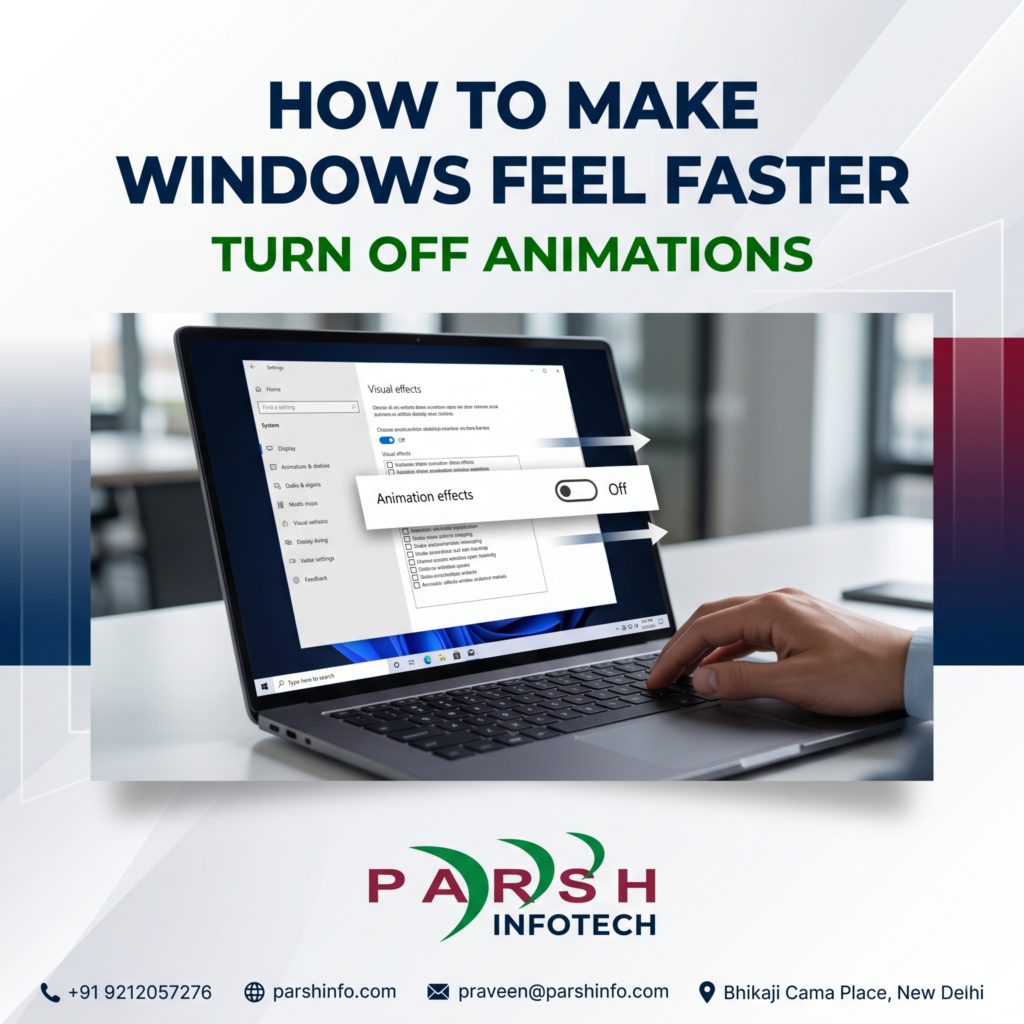
A Windows computer does not always need a hardware upgrade to feel more comfortable to use. Sometimes, a small change to the way the operating system displays menus, windows and transitions can make everyday interactions feel more immediate.
Windows includes animation effects that make the interface appear smoother when you open, close, minimize or maximize windows. These effects can be visually appealing, but some users prefer a simpler interface with fewer transitions. One option is to turn off animations in Windows. This is a straightforward setting that can reduce visual distractions and make the desktop experience feel more responsive, particularly if you find animated transitions unnecessary.
Here is how to change the setting in Windows 11 and Windows 10, what to expect afterward, and what to investigate if your computer still feels slow.
Why Turn Off Animations in Windows?
Animations are part of the Windows user interface. They provide visual transitions when navigating between different parts of the operating system.
However, not everyone prefers this presentation.
Turning off animation effects may be useful if you:
- Prefer windows and menus to appear without animated transitions.
- Find visual movement distracting while working.
- Use your computer for extended periods and prefer a simpler desktop experience.
- Want to make routine navigation feel more immediate.
- Are helping someone who finds animated interface elements uncomfortable.
It is important to understand the difference between perceived responsiveness and actual computing performance. Disabling animations changes the interface experience. It does not automatically increase your processor speed, add memory or repair a slow storage drive.
How to Turn Off Animations in Windows 11
Windows 11 includes a dedicated setting for controlling animation effects.
Follow these steps
- Open the Start menu and select Settings. You can also press Windows + I.
- Select Accessibility from the Settings sidebar.
- Open Visual effects.
- Find the Animation effects option.
- Switch Animation effects off.
Windows will then stop displaying the system animation effects controlled by this setting. You can return to the same menu and switch the option back on whenever you want to restore the animations. These instructions follow Microsoft’s published guidance for Windows accessibility settings.
How to Turn Off Animations in Windows 10
Windows 10 uses a slightly different settings layout.
Follow these steps
- Open the Start menu and select Settings.
- Select Ease of Access.
- Choose Display.
- Find the option labelled Show animations in Windows.
- Switch it off.
The exact wording and location may vary depending on your Windows version and interface configuration. If you cannot find the setting, use the Windows Settings search box and search for animation settings. Microsoft documents the Windows 10 animation control in its accessibility guidance.
Should You Also Turn Off Transparency Effects?
Windows provides a separate control for transparency effects. These effects can make certain interface backgrounds appear translucent.
In Windows 11, you can find this option under:
Settings → Accessibility → Visual effects → Transparency effects
You can turn transparency off if you prefer more opaque backgrounds or a less decorative interface. However, turning off transparency is not a requirement for disabling animations. The two-settings control different visual behavior’s, and you can choose whichever combination suits your preferences.
For most users, changing one setting at a time is a sensible approach. This makes it easier to identify which changes improve their experience.
Will Turning Off Animations Actually Make Your Computer Faster?
The answer depends on what you mean by faster.
It can change how responsive Windows feels
Without animated transitions, some interface actions may appear more immediate because the operating system is no longer displaying the same transitions. This can make routine navigation feel more direct. However, the effect varies by computer and user, and there is no universal performance improvement that can be promised.
It does not solve every performance problem
If your computer takes a long time to start, applications freeze, files open slowly or the system becomes unresponsive, animation settings may not address the underlying cause.
Other areas worth investigating include:
- Too many applications launching at startup.
- Insufficient available memory for your workload.
- Limited free storage space.
- Background applications consuming system resources.
- Software problems or pending system updates.
- Storage or hardware faults.
These are separate diagnostic areas. Disabling animations should not be treated as a substitute for investigating persistent performance problems.
What Else Can You Do If Windows Still Feels Slow?
If turning off animations makes little difference, consider a more systematic approach.
Review startup applications
Applications that launch automatically can increase startup time and consume resources in the background.
Open Task Manager and review the Startup apps section. Disable automatic startup only for applications you recognise and do not need to launch automatically. Avoid disabling essential security or system components without understanding their purpose.
Check available storage
A drive with very little free space can create practical problems for updates, temporary files and application workflows.
Open File Explorer and check the available space on your system drive. Use Windows storage-management tools to identify unnecessary files before deleting anything important.
Check memory and processor usage
Open Task Manager and review CPU, Memory and Disk activity while the computer is experiencing a slowdown.
Look for applications using unusually high resources. A single reading is not enough to establish a hardware fault, so observe usage during the specific task that feels slow.
Consider whether your hardware matches your workload
A computer used mainly for web browsing, office documents and online classes has different requirements from a machine used for demanding design software, video editing or other intensive workloads.
If the computer remains slow after basic software checks, it may be worth assessing its processor, RAM, storage type and overall condition before deciding whether an upgrade or replacement is appropriate.
Frequently Asked Questions
Does turning off animations speed up Windows 11?
It can make some interface interactions feel more responsive, but it does not guarantee faster application loading, improved processing speed or better performance in every workload.
Is it safe to disable animation effects?
Yes. Turning off the standard Windows animation effects through Accessibility settings is a normal user-interface preference. You can restore them through the same settings menu.
Do I need to turn off transparency as well?
No. Animation effects and transparency effects are separate controls. You can disable animations while leaving transparency enabled, or change both settings according to your preference.
Will disabling animations improve gaming performance?
You should not expect a meaningful improvement in game performance from this setting alone. Gaming performance depends on factors such as the processor, graphics hardware, memory, drivers and the requirements of the game.
What should I do if my computer is still slow?
Check startup applications, available storage and resource usage in Task Manager. If the problem continues, investigate the underlying software or hardware rather than relying only on visual settings.
Conclusion
Turning off animations is a simple way to customize Windows for a more direct, less animated desktop experience. Windows 11 users can find the control under Accessibility and Visual effects, while Windows 10 uses the older Ease of Access settings.
The change may improve perceived responsiveness, but it is not a universal solution for a slow computer. If your system continues to struggle, investigate its software, resource usage and hardware configuration before deciding on the next step.
Need help choosing a computer or laptop that suits your work, study or business requirements? Parsh Infotech Inc. provides information and assistance on computer products and related IT solutions.
Contact Parsh Infotech Inc.
- Website: https://parshinfo.com
- Phone: +91 9212057276
- WhatsApp: +91 9711415702
- Address: B-48, Somdutt Chamber-II, Bhikaji Cama Place, New Delhi – 110066
Author
Praveen Gupta is the COO of Parsh Infotech Inc., an IT products and solutions business established in 2002 and based in Bhikaji Cama Place, New Delhi. His business focus includes computers, laptops, refurbished systems, printers, cartridges and related IT products and support.
References
- Microsoft Support, Make it easier to focus on tasks: https://support.microsoft.com/en-gb/accessibility/windows/make-it-easier-to-focus-on-tasks
- Microsoft Support, Turn off Office animations: https://support.microsoft.com/en-us/office/graphics-visuals/turn-off-office-animations


What Really Matters When Buying a Laptop in India in 2026?
September 7, 2026 | by Praveen Gupta
What Really Matters When Buying a Laptop in India in 2026?
Read More → 
Samsung Galaxy M17 5G Mobile (Moonlight Silver, 4GB RAM, 128GB Storage)
July 8, 2026 | by Praveen Gupta
Read More → 
Is Buying a Refurbished Laptop Worth It? Pros, Cons & Risks
July 7, 2026 | by Praveen Gupta
Is Buying a Refurbished Laptop Worth It? Pros, Cons & Risks If you’ve shopped for a laptop recently, you’ve probably...
Read More → 
All About Printer Cartridges: Essential Information for Your Business
June 19, 2026 | by Praveen Gupta
Learn why genuine printer cartridges are crucial for quality printing and how they benefit your business operations in New Delhi.
Read More → 
Genuine Printer Cartridges
June 9, 2026 | by Praveen Gupta
A customer recently told us: “The toner I bought from you lasted 3 months. The one I bought elsewhere didn’t...
Read More → 
Can You Refill Ink Cartridges at Home to Save Money in Delhi?
April 25, 2026 | by Praveen Gupta
Can You Refill Ink Cartridges at Home to Save Money in Delhi? You are probably trying to cut down on...
Read More →